Public View
Motivation
GeoGardenClub is primarily designed to nurture a local community of gardeners, and to facilitate that, access to community data requires gardeners to join a Chapter.
While this "walled garden" is useful for developing community, it also creates a barrier if you want to share your garden plan with someone outside of GeoGardenClub. For example, suppose you are talking with a master gardener on the phone about an issue with your garden. It could be helpful to provide them with access to your garden data, as this comprehensive view might help them discover subtle issues that you might not notice or communicate on your own.
The "Public View" facility enables members to provide access to their garden data to people who are not members of GeoGardenClub, with the following caveats:
- Each Public View provides information only about a single Garden: its Beds, Observations, Outcomes, and Plantings. The Public View does not provide access to community data (i.e. other Gardens, Gardeners, Forum postings, etc).
- Only the owner of a Garden can enable a Public View for that Garden. Gardens do not have a Public View by default.
- Owners can create and remove the Public View for their Garden(s) at any time.
Public View Screens
Public View URL
Each Public View is identified by a unique (and hard to guess) URL that is initially known only to the Gardener who creates it. They can share this URL with whomever they choose. Here is an example of a Public View URL:
https://geogardenclub.app/public_view/KBMXZY
Top Level View
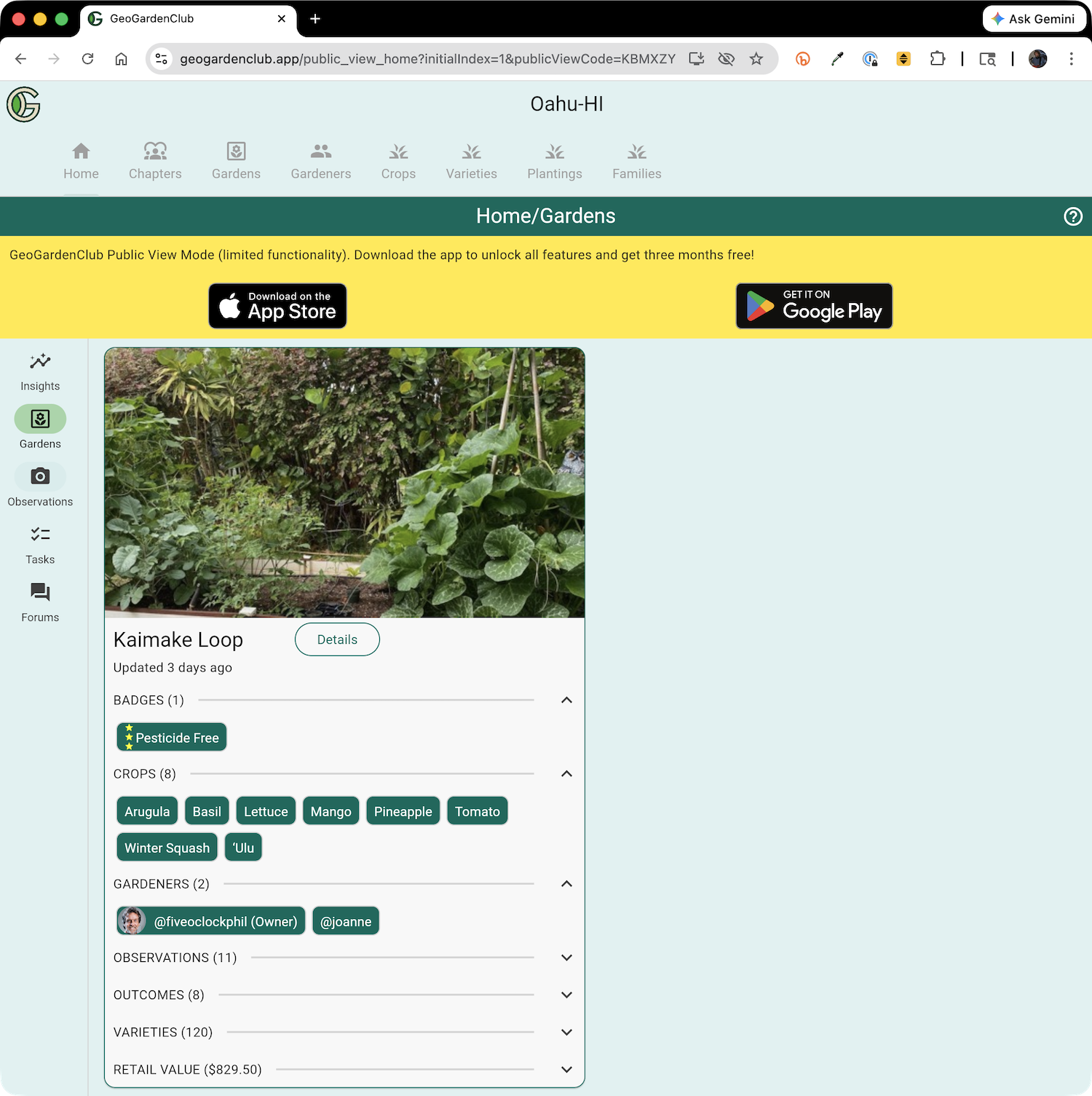
Retrieving the Public View URL in a laptop browser presents a top-level view of a Garden. For example, here is the top-level view of the "Kaimake Loop" garden:
You can also retrieve the Public View URL in a phone browser, which would look like this:
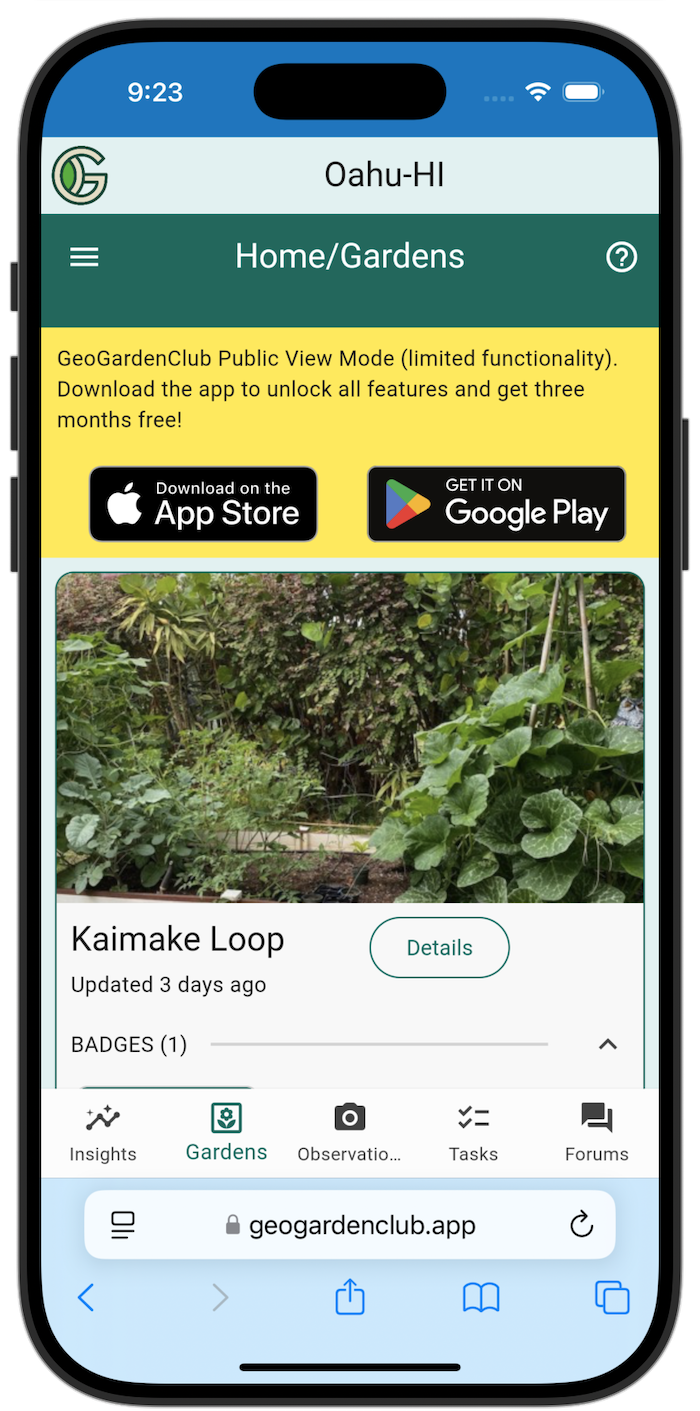
While the screen presents the full GeoGardenClub interface, the functionality is limited in Public View. For example, in the side bar (laptop) or bottom bar (mobile), only the Observation and Gardens tabs are functional.
Observation View
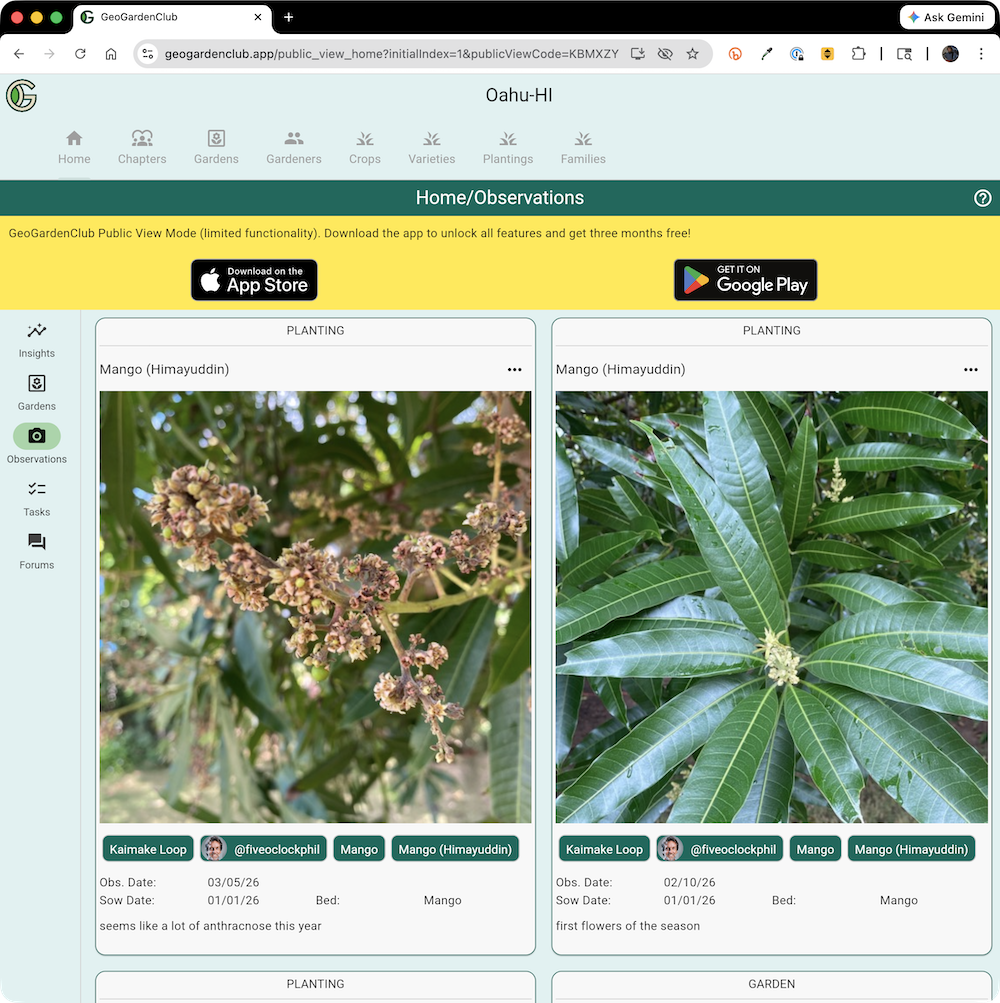
Tapping the Observation button displays only the Observations associated with the Garden:
Not Available Popup
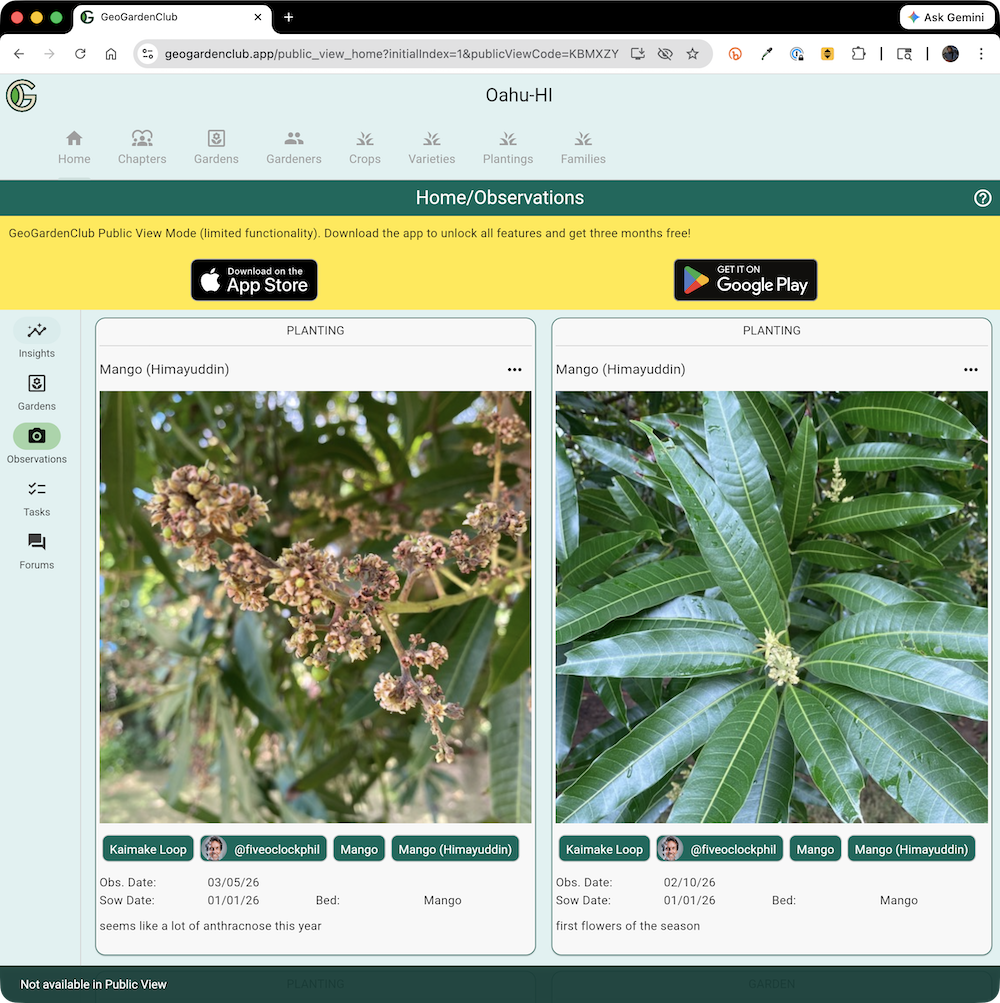
If the user taps a button that is not functional in Public View, the system indicates that with a popup at the bottom of the screen. For example, if the user tapped the "Insights" button, the following popup will appear:
Garden Details Timeline View
From the Top Level View, tapping the "Details" button takes you to the Garden Details screen and shows its Timeline View:
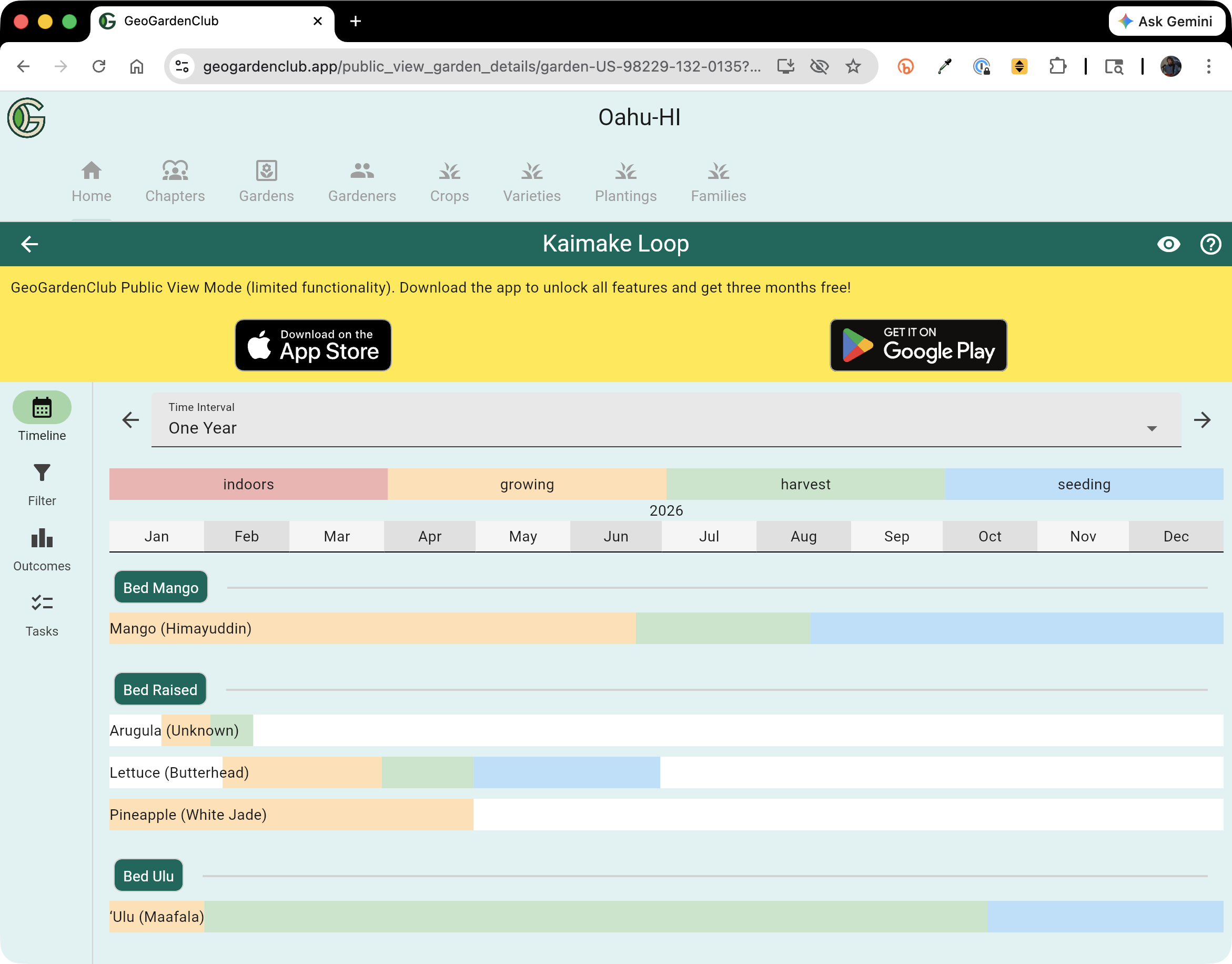
The Timeline View is documented in the Garden Details Timeline View section of this User Guide.
Garden Details Filter View
Once you're in the Garden Details screen, tap the Filter button in the sidebar to see the Filter View:
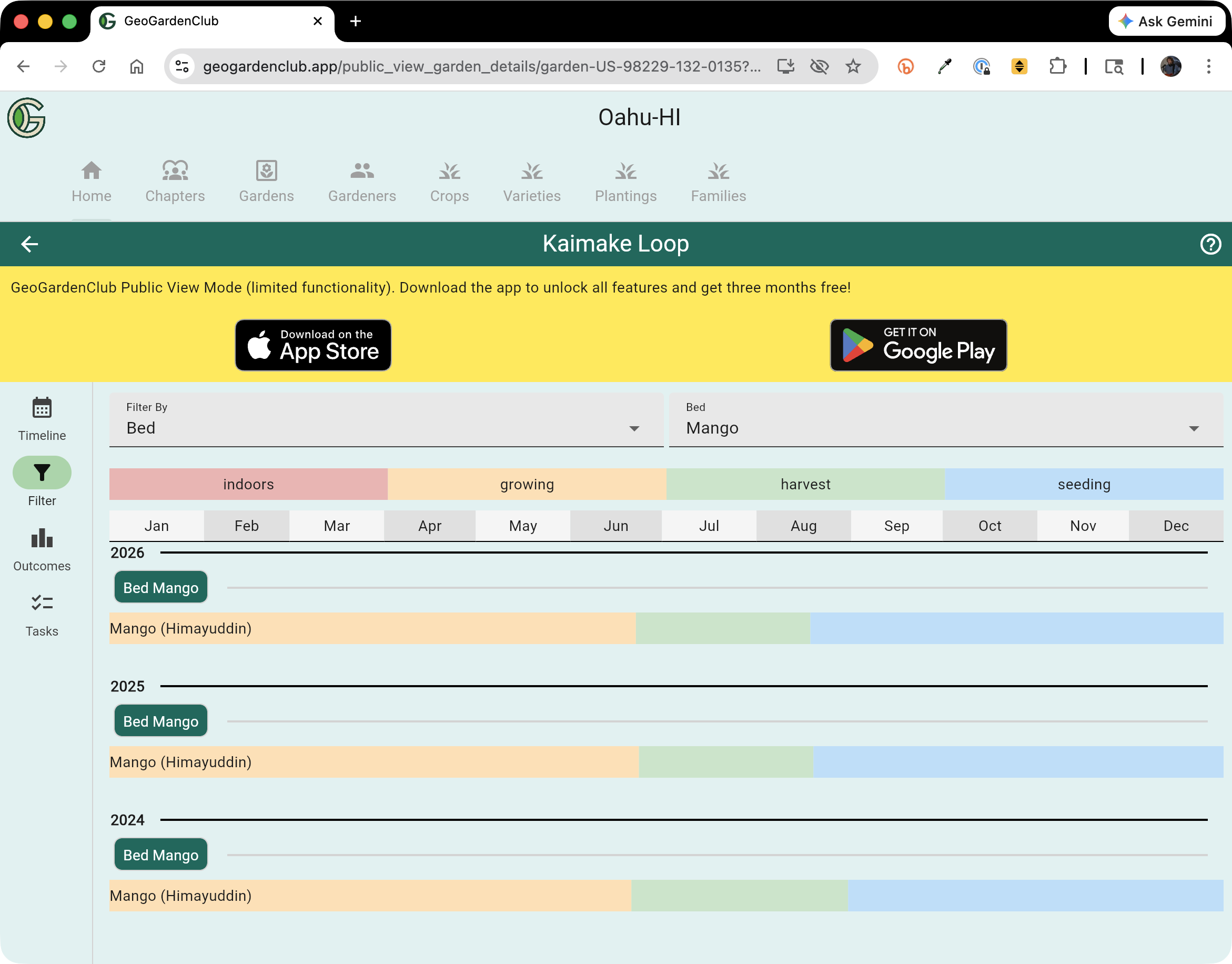
The Filter View is documented in the Garden Details Filter View section of this User Guide.
Garden Details Outcomes View
The third Public View available in Garden Details is the Outcomes View:
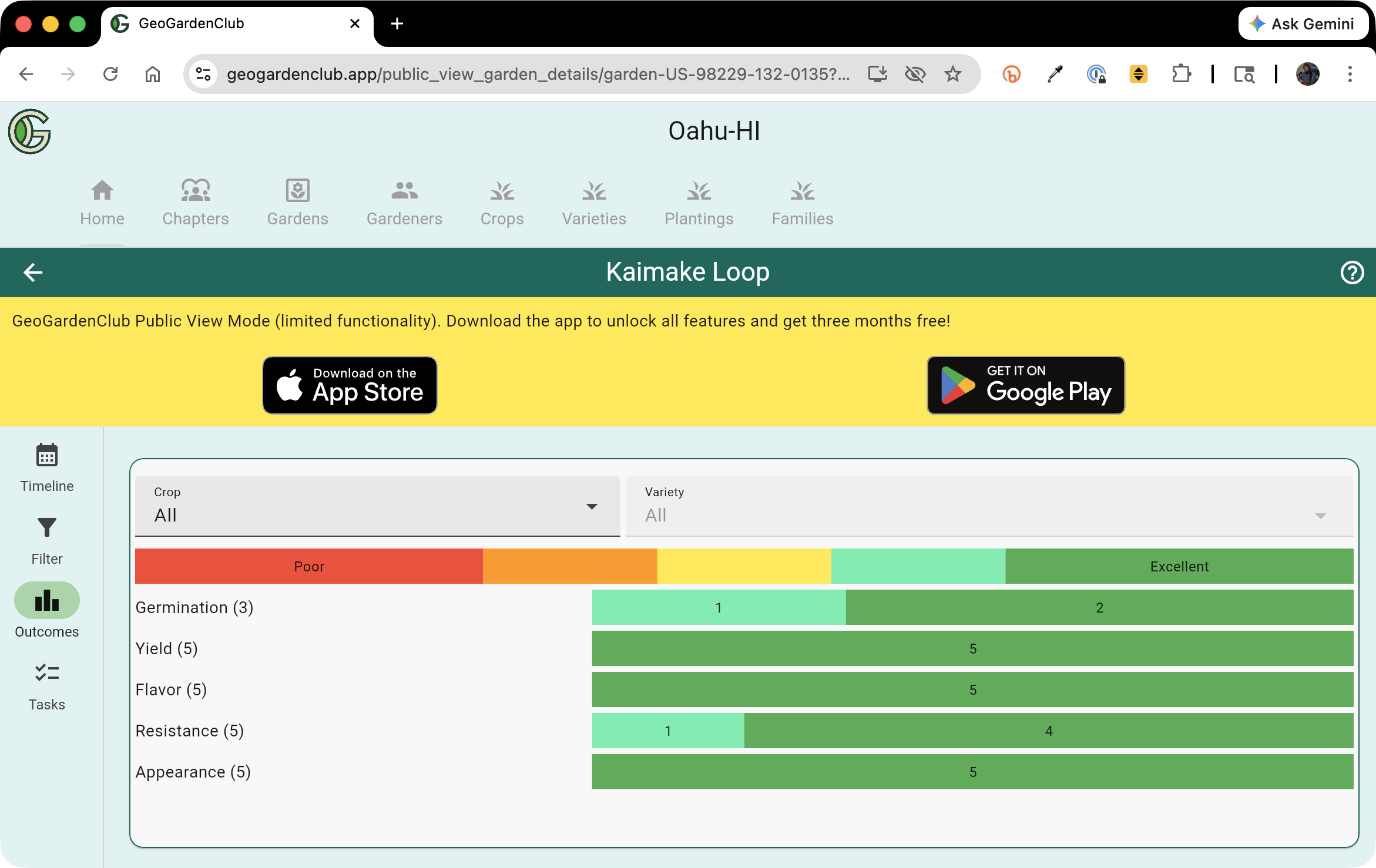
The Outcomes View is documented in the Garden Details Outcomes View section of this User Guide.
Planting Details View
From the Timeline View, tapping on any Planting timeline bar takes you to the Planting Details View for that Planting:
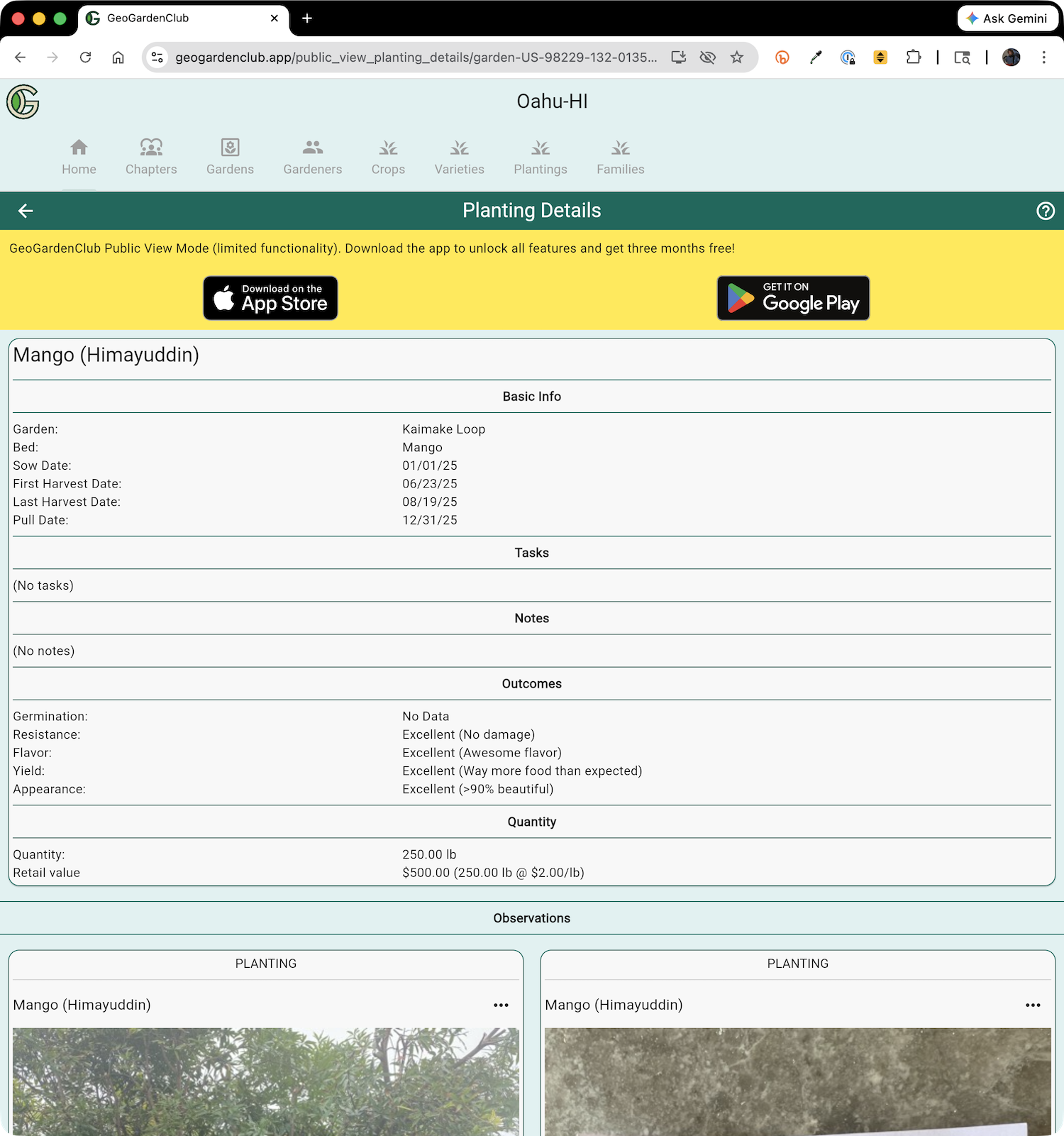
The Planting Details View is documented in the Planting Details section of this User Guide.
Managing Public Views
Creating a Public View
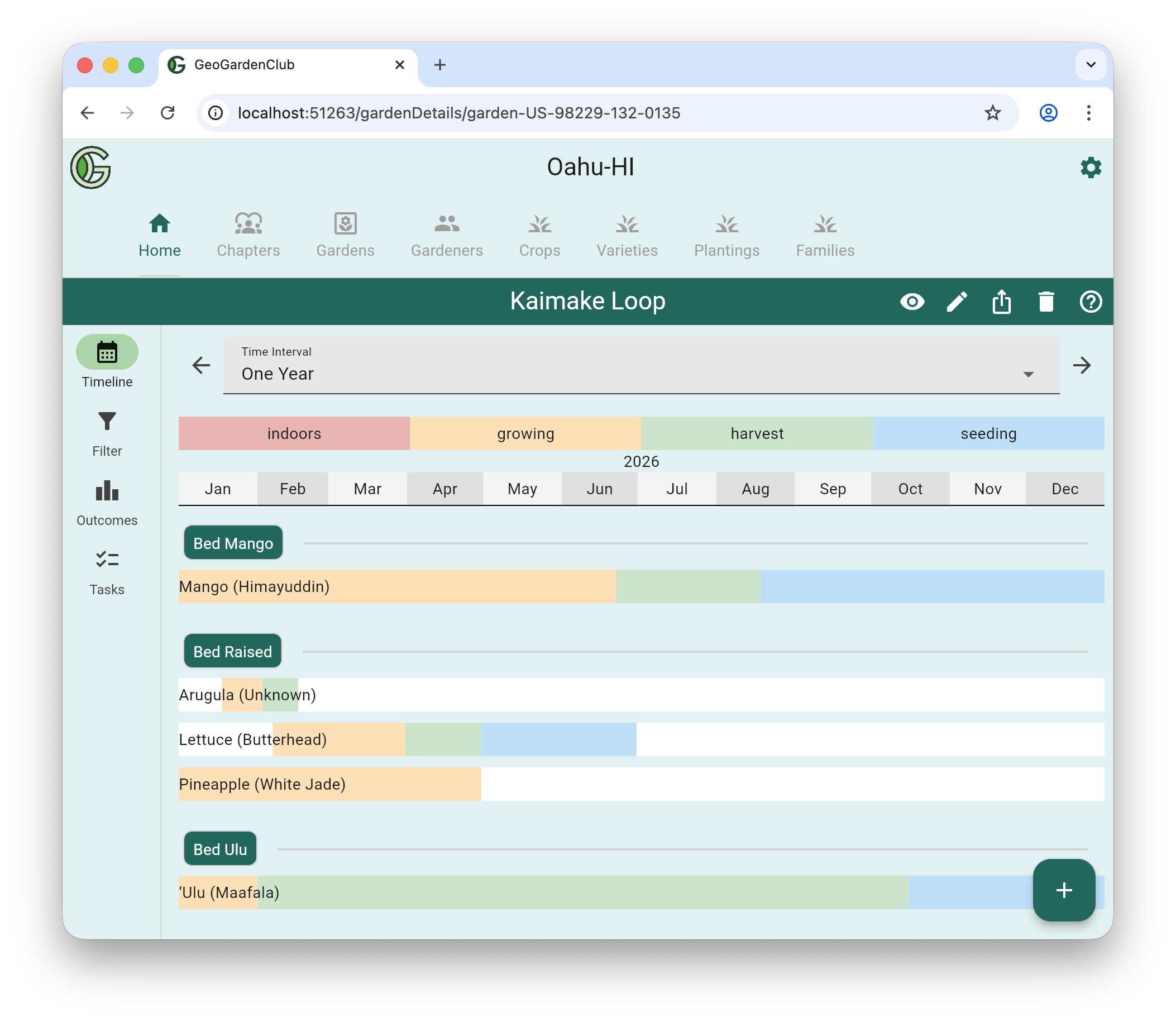
To create the Public View for a garden that you own, go to its Garden Details section. You'll see a "share" icon (a box with an upward arrow) in the nav bar:
On mobile, it looks like this:
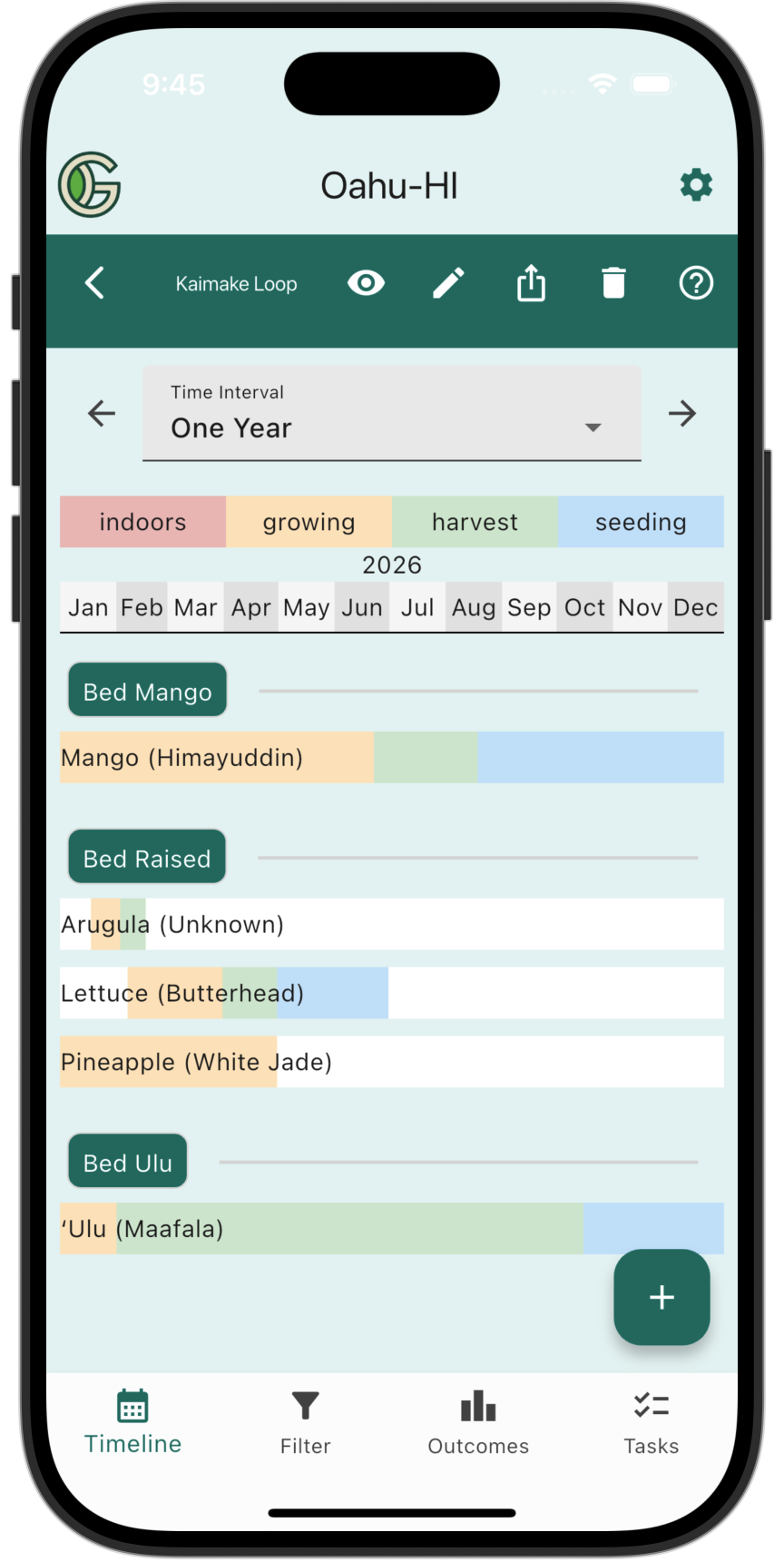
Note that the share icon is white, which indicates that this Garden does not currently have a public view.
To create a Public View, click that icon, which takes you to the Public Views screen in your Settings area. This section lists all of the Gardens that you own and whether or not they have a Public View.
In the following screen, the Gardener owns only one Garden, and it does not currently have a Public View:
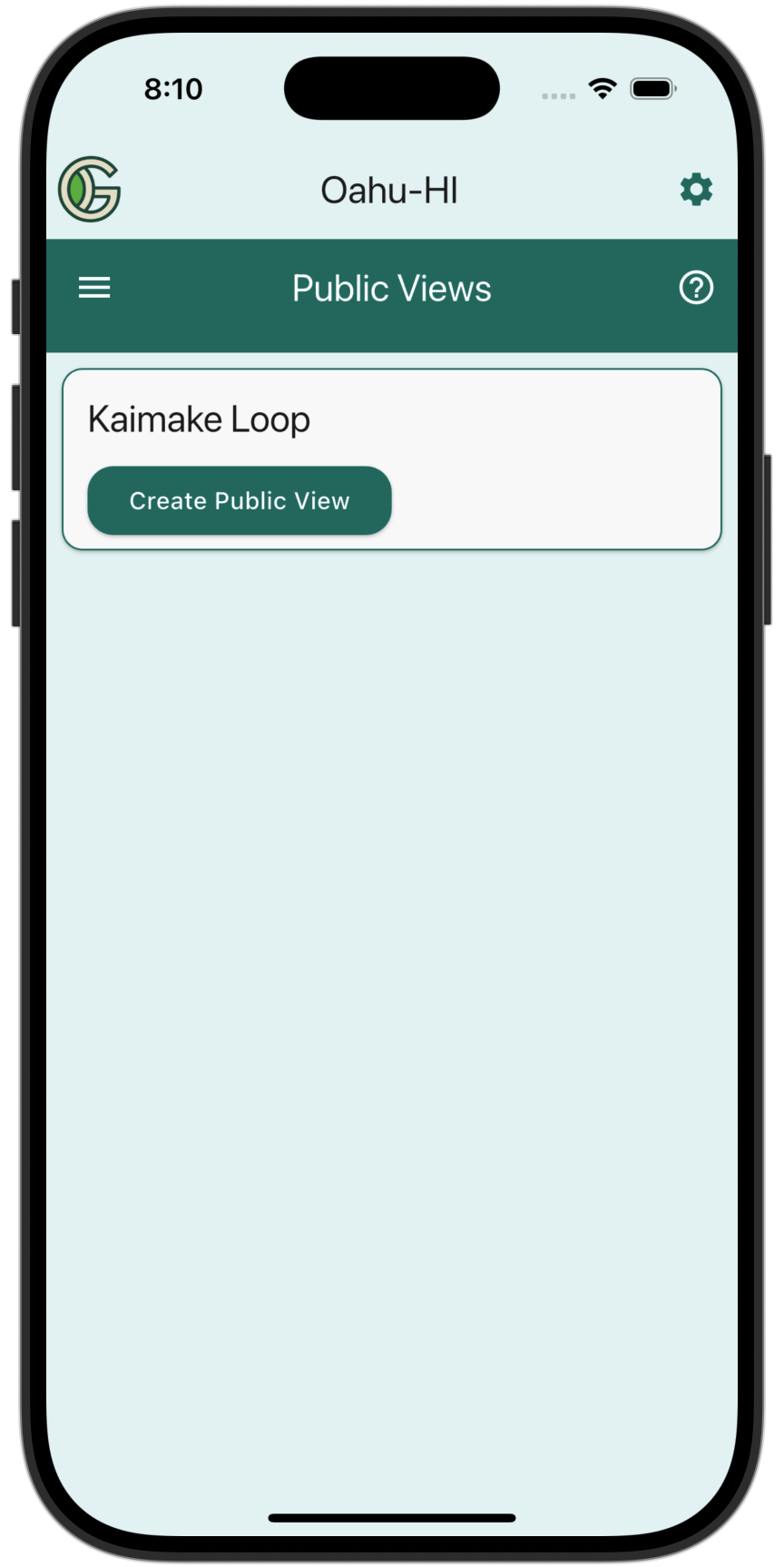
To create a Public View, tap the "Create Public View" button. This generates a URL with a random six character suffix that can be used by anyone to see its Public View, provides a button to copy the URL, along with a button to delete the Public View. The screenshot below shows the notification that appears briefly when a new Public View is created:
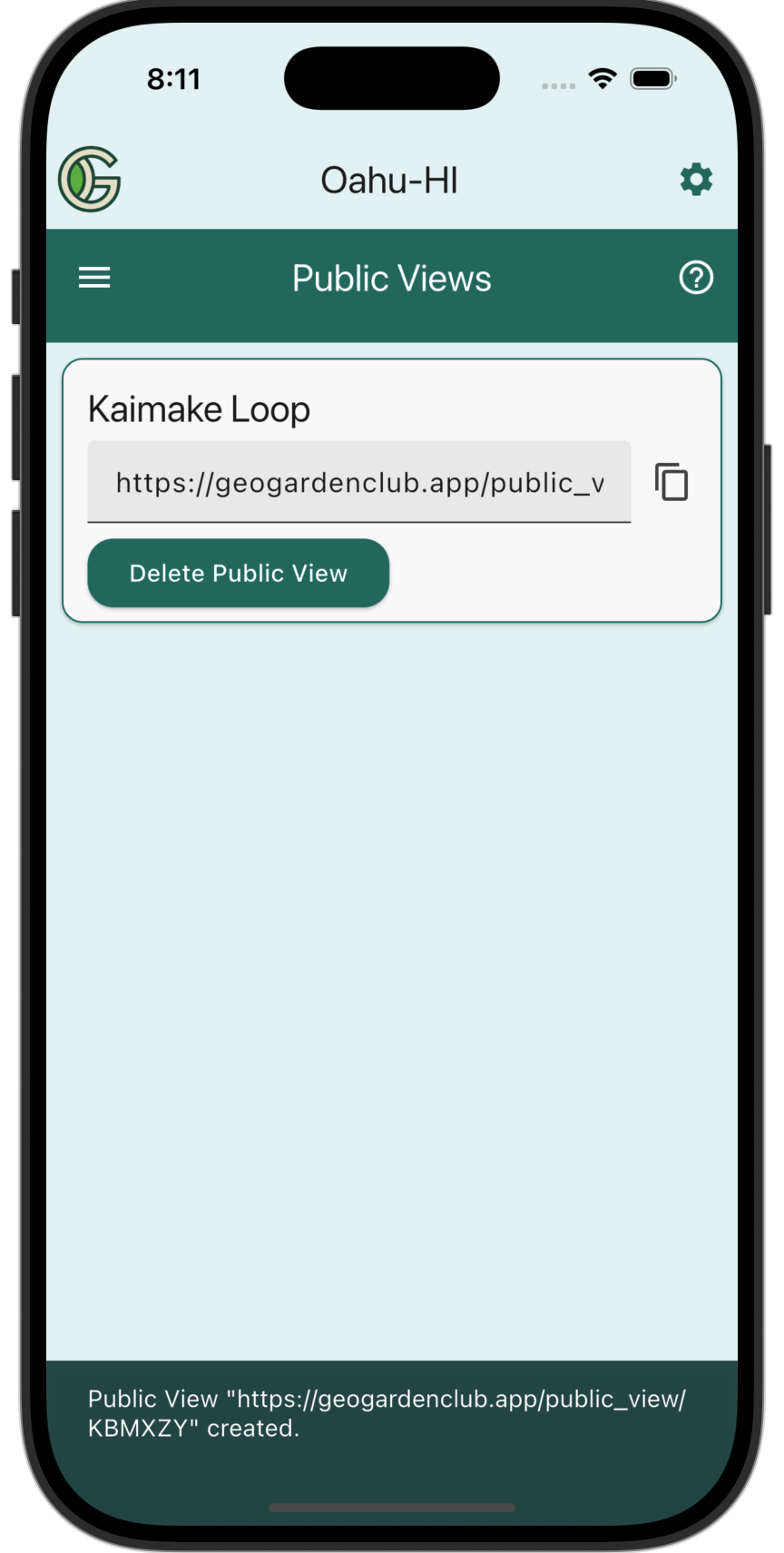
You can now tap the "Copy" icon to copy the URL to your clipboard, and send this URL to anyone you wish.
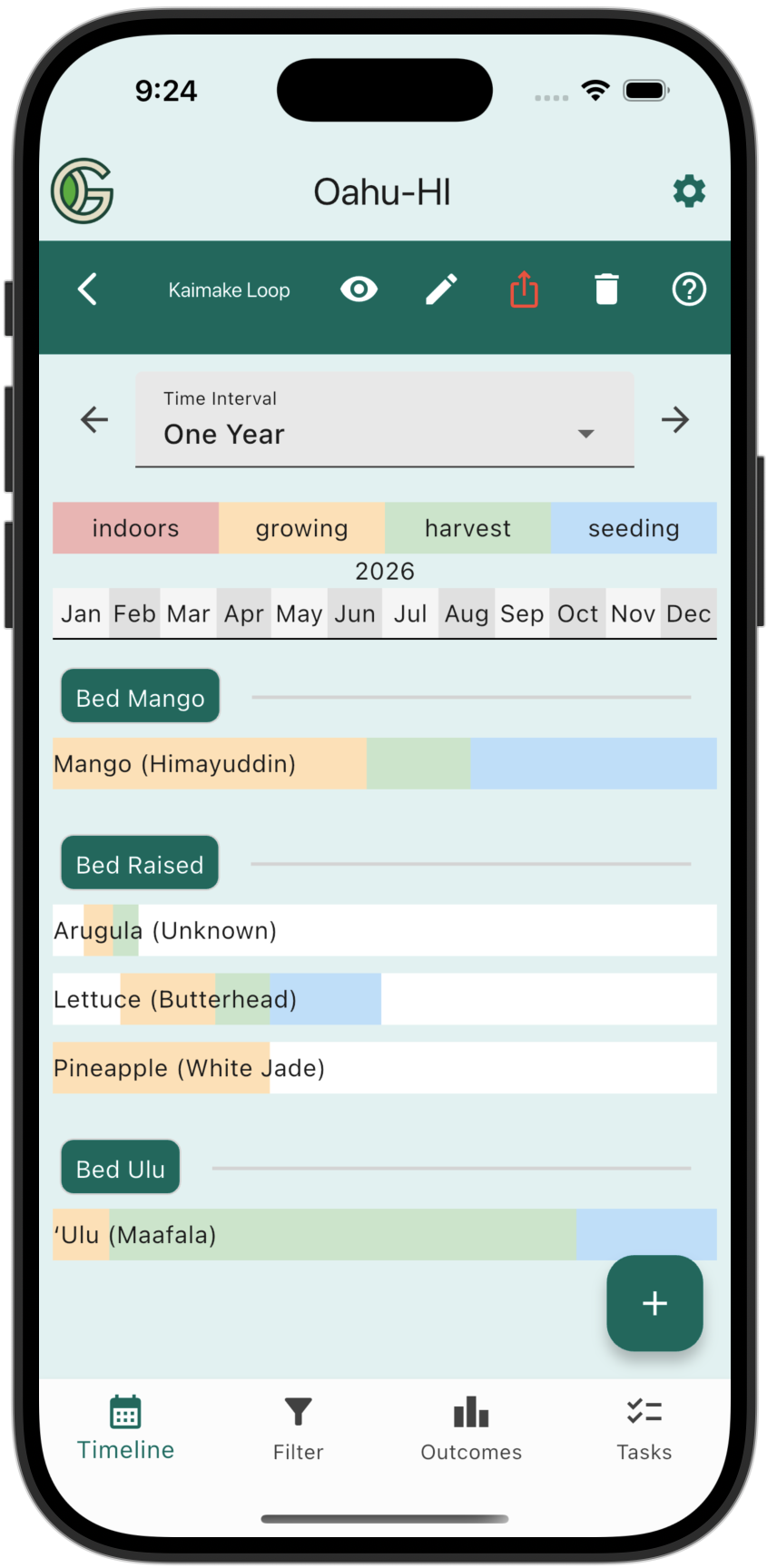
In addition, if you return to the Garden Details screen, you will see that the Sharing icon is now red, indicating that a Public View exists for this Garden:
Deleting a Public View
If you decide you no longer wish to have a Public View for your Garden, you can click the Sharing icon from the Garden Details screen, and press the "Delete Public View" button. This will ask you to confirm that you want to delete the Public View, and then delete it.
Note that if you now press the "Create Public View" button, a Public View will be created with a different six character suffix in the URL. This is useful if you have provided access in (say) a forum and no longer want that URL to be valid, but want to provide access to a new set of people moving forward.