About Home
Whether you're in your Free Preview Period or have accepted a subscription after 7 days, you will initially arrive at the Home screen.
The Home screen is your "dashboard" and provides quick access to important features.
Screen components
Here is an example that highlights some of standard components of GeoGardenClub screens:
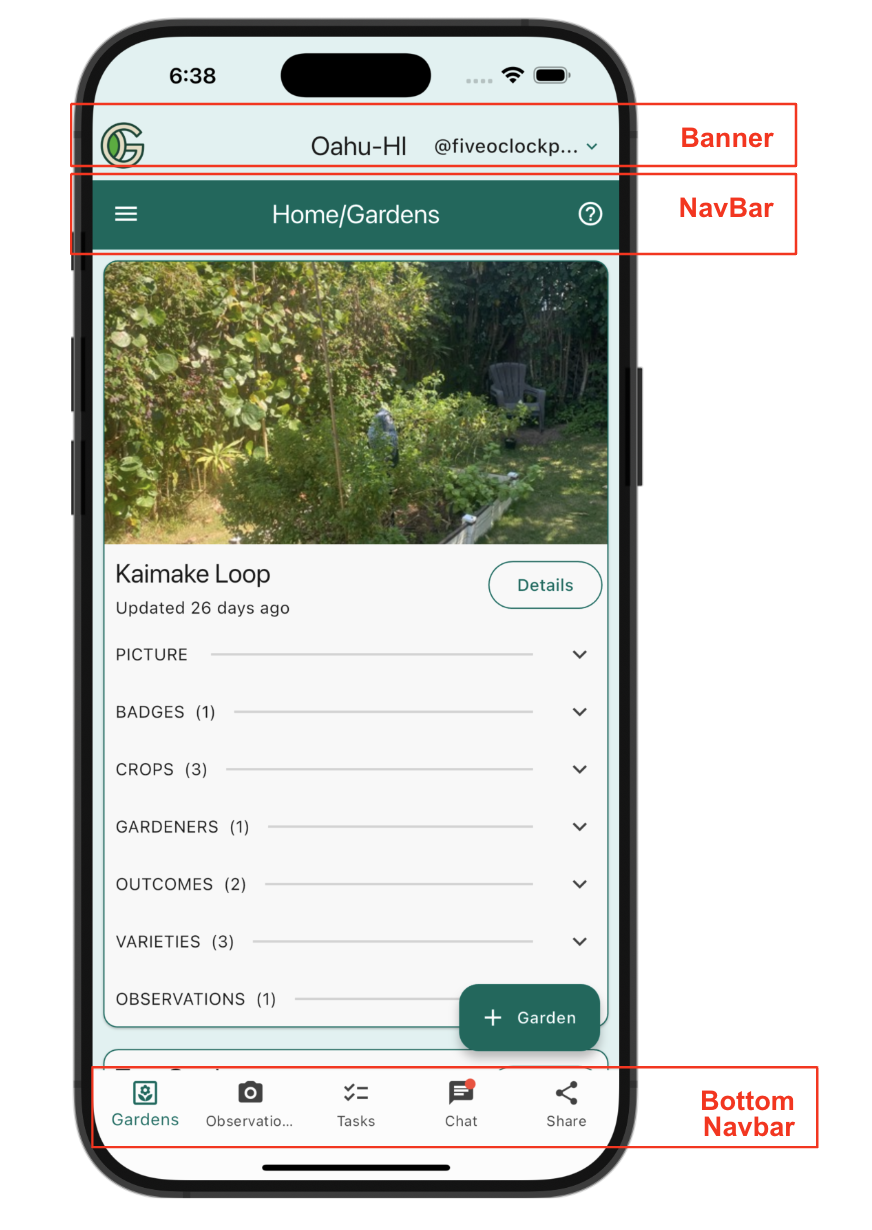
Banner: All screens start with a Banner that shows the chapter you are in and a cog wheel icon. Tap the icon for a drop-down list that takes you to your settings or allows you to logout.
NavBar: The NavBar provides:
- A "hamburger" icon. Tap it to reveal the Drawer.
- The name of the current screen.
- A Help icon ("?"). Tap it to navigate to the User Guide documentation for the current screen.
Some screens may provide additional icons in the NavBar to support operations like editing, deletion, copying, etc.
Bottom NavBar: Some screens, like the Home screen, include a Bottom NavBar with icons that take you to useful "views". In the Home screen, there are five views (Insights, Gardens, Observations, Tasks, and Forums). For these views, a red notification icon might appear if something has changed since the last time you visited.
The Drawer
Tapping the hamburger icon in the NavBar reveals the Drawer:
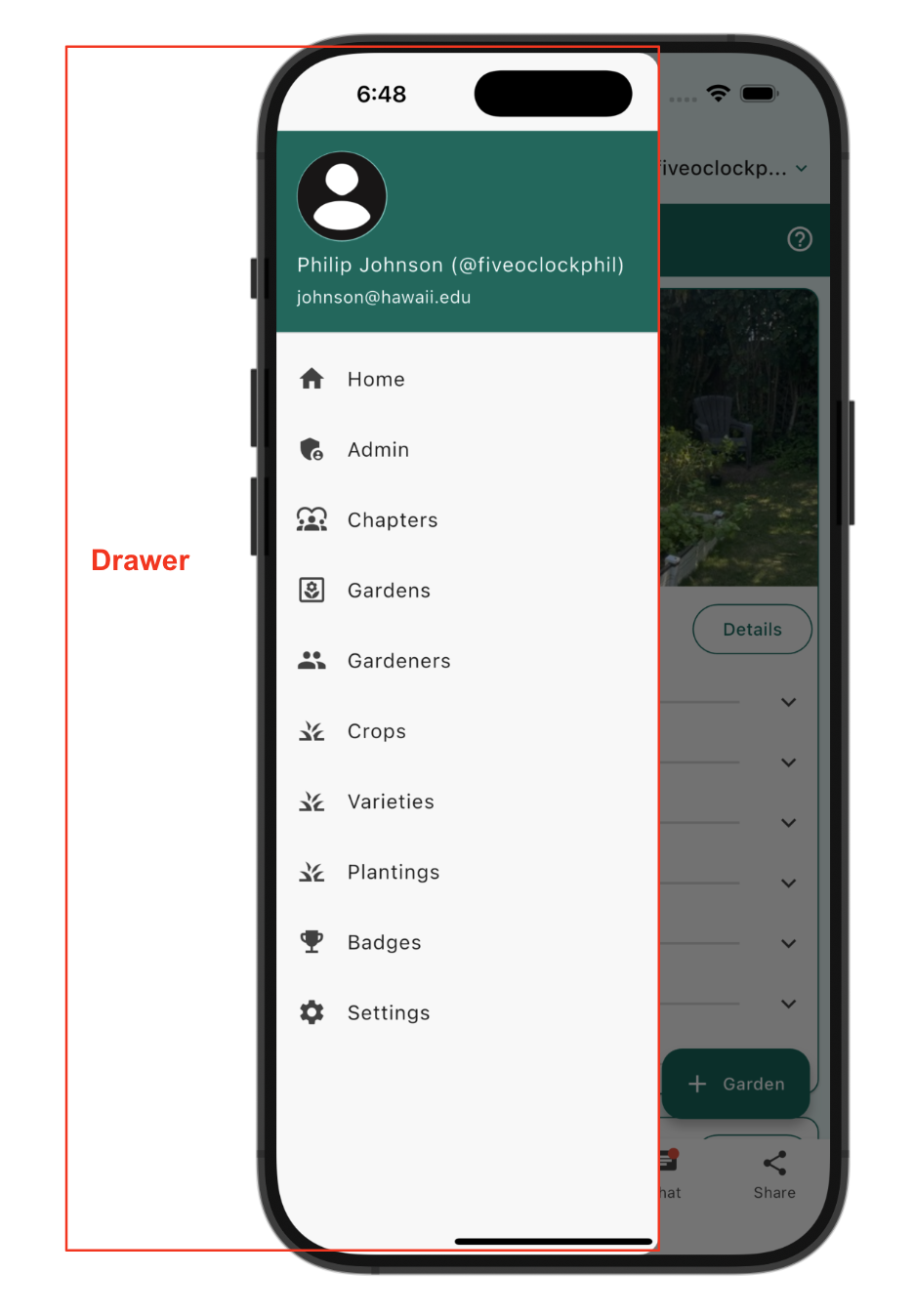
The Drawer is your "site map" to the app. It provides access to all of the top-level screens in the app.
Note that if you tap on a screen name in the Drawer, and nothing happens, it's because you are already on that screen. Just tap outside the Drawer to reveal the screen.
Let's next take a deeper look at the first Home Screen view: Insights.