Forums
Forums enable you to communicate with all members of your chapter. You can use Forums to ask gardening questions, offer (or seek) excess produce or other gardening resources, or spread the word about local gardening events of interest.
In addition to Forums, you can also send Private Messages to other chapter members. This allows you to communicate with individual gardeners in your chapter without sharing your information with the entire chapter. See the Private Messages page for more details.
Forums can also be a good way to communicate with GeoGardenClub staff regarding questions about the system, possible bugs, or any other concerns. (If you don't want your message to staff to be public (for example, if you have a billing question), you can instead email us at info@geogardenclub.com)).
Accessing Forums
You can access the Forum feature from your Home Screen by tapping the Forum icon in the bottom navigation bar. This displays a list of all Forum topics in reverse chronological order:
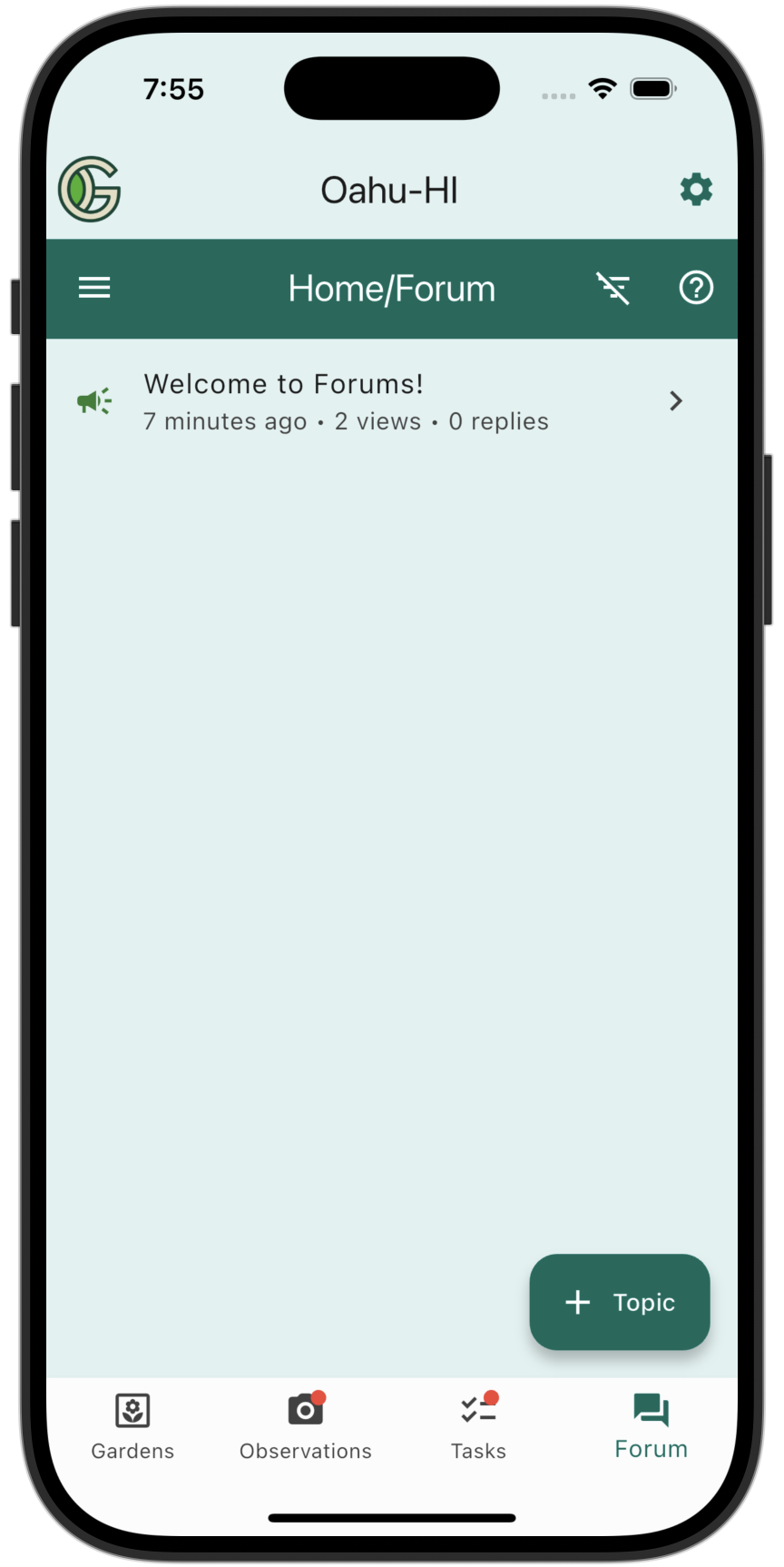
Tap on a topic to see the associated content.
Create Public Topic
To create a new public Forum topic, tap on the "+" button and press "+ Public Topic"
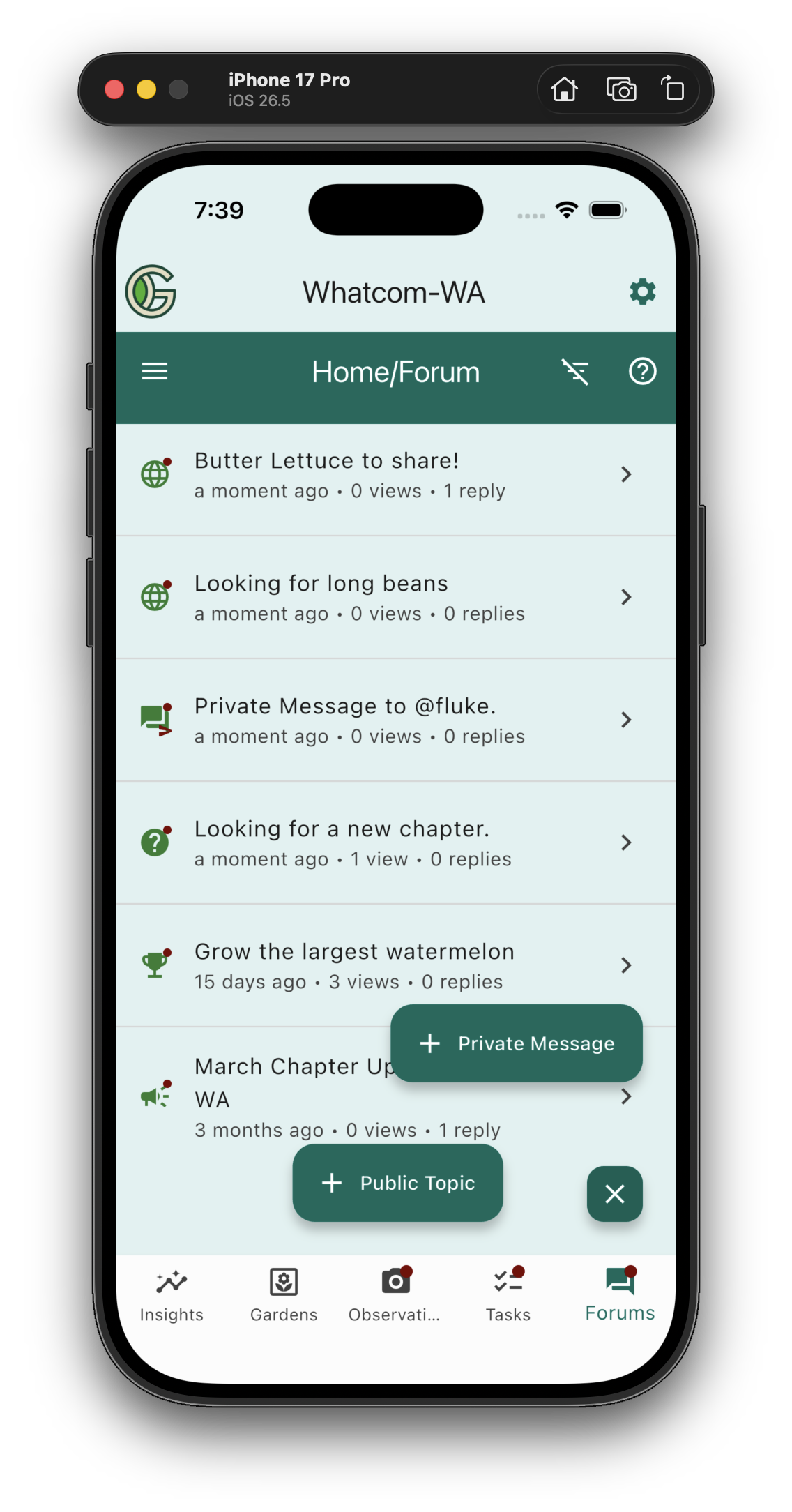
to bring up the Create Topic Screen:

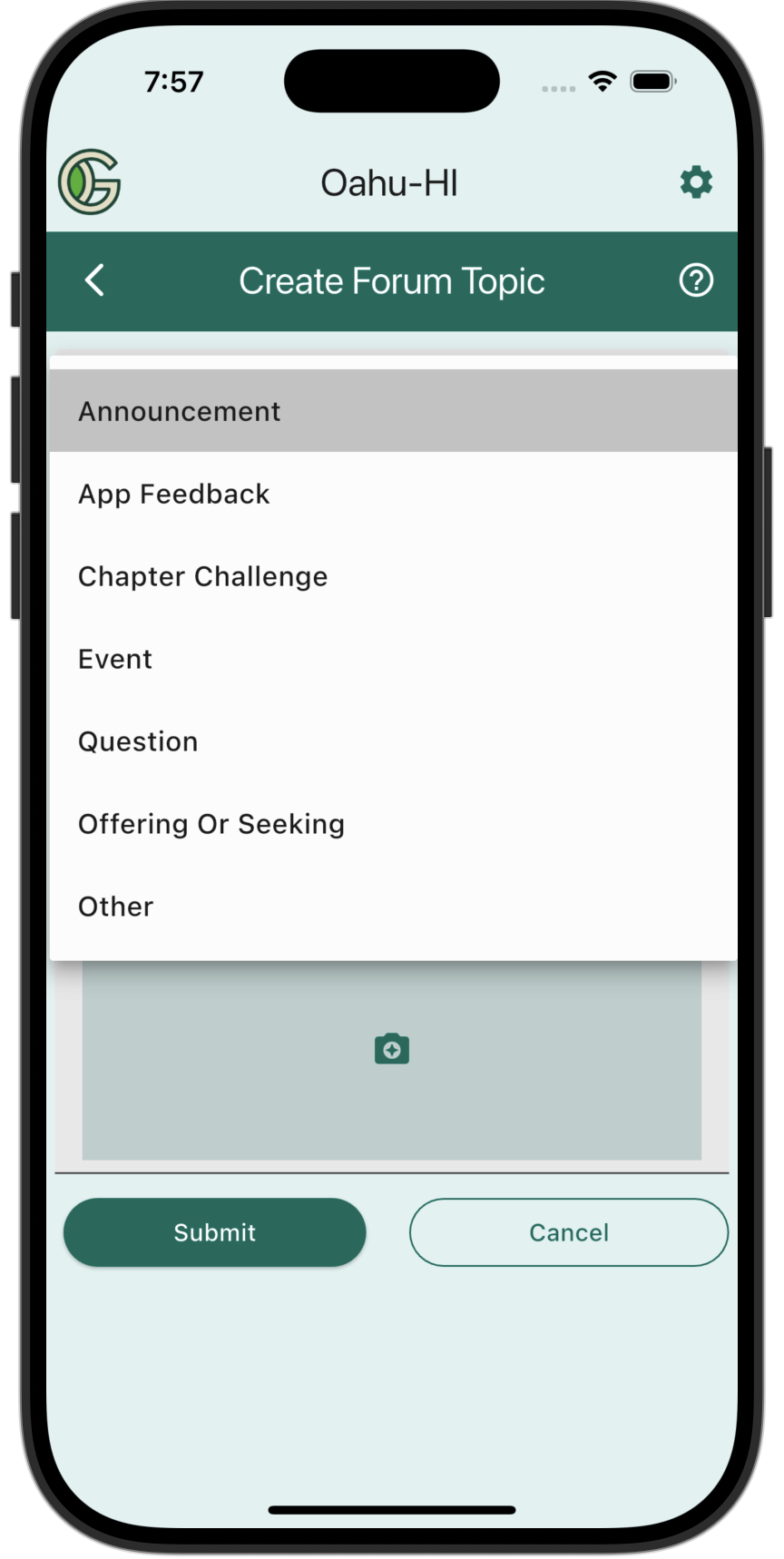
Topic Type. First select a Topic Type. Available types are:
- Announcement. This topic type is reserved for use by GeoGardenClub administrators to publicize Club-specific information.
- App Feedback. Use this topic type to ask questions, post concerns/bugs about the app, or suggest new features.
- Chapter Challenge. Administrators will use this topic type to publicize "Challenges" that all chapters can participate in.
- Event. Use this topic type to publicize local gardening events that you think other chapter members might be interested in.
- Question. Use this topic type to pose general gardening questions.
- Offering or Seeking. This topic type enables you to offer (or seek) produce, seeds, or other gardening resources (tools, soil, etc.)
- Other. If none of the above fit, use this topic type.
Then, add a title, message, and (optional) photo. For example:
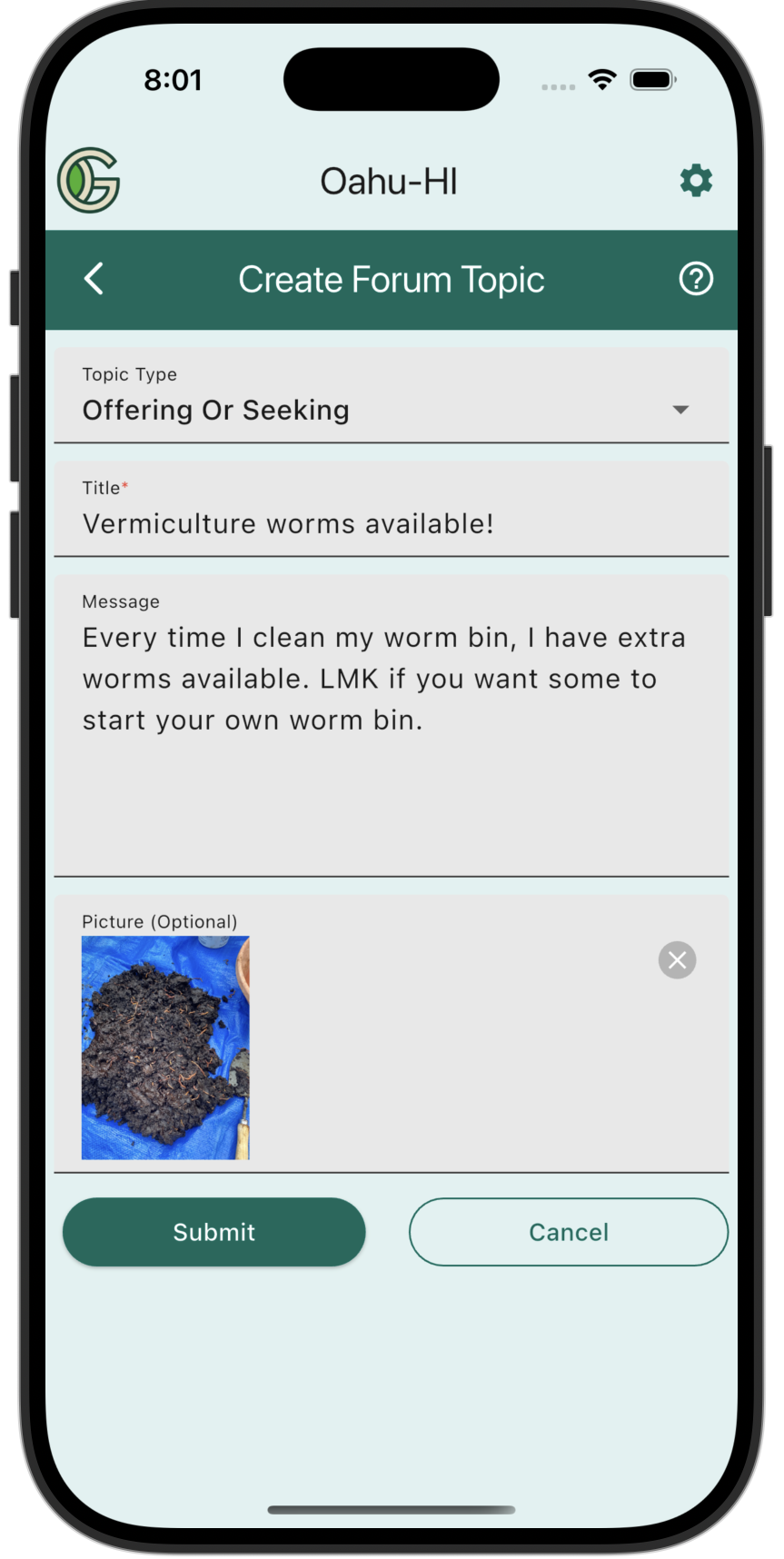
Note that you can use Markdown to format your message.
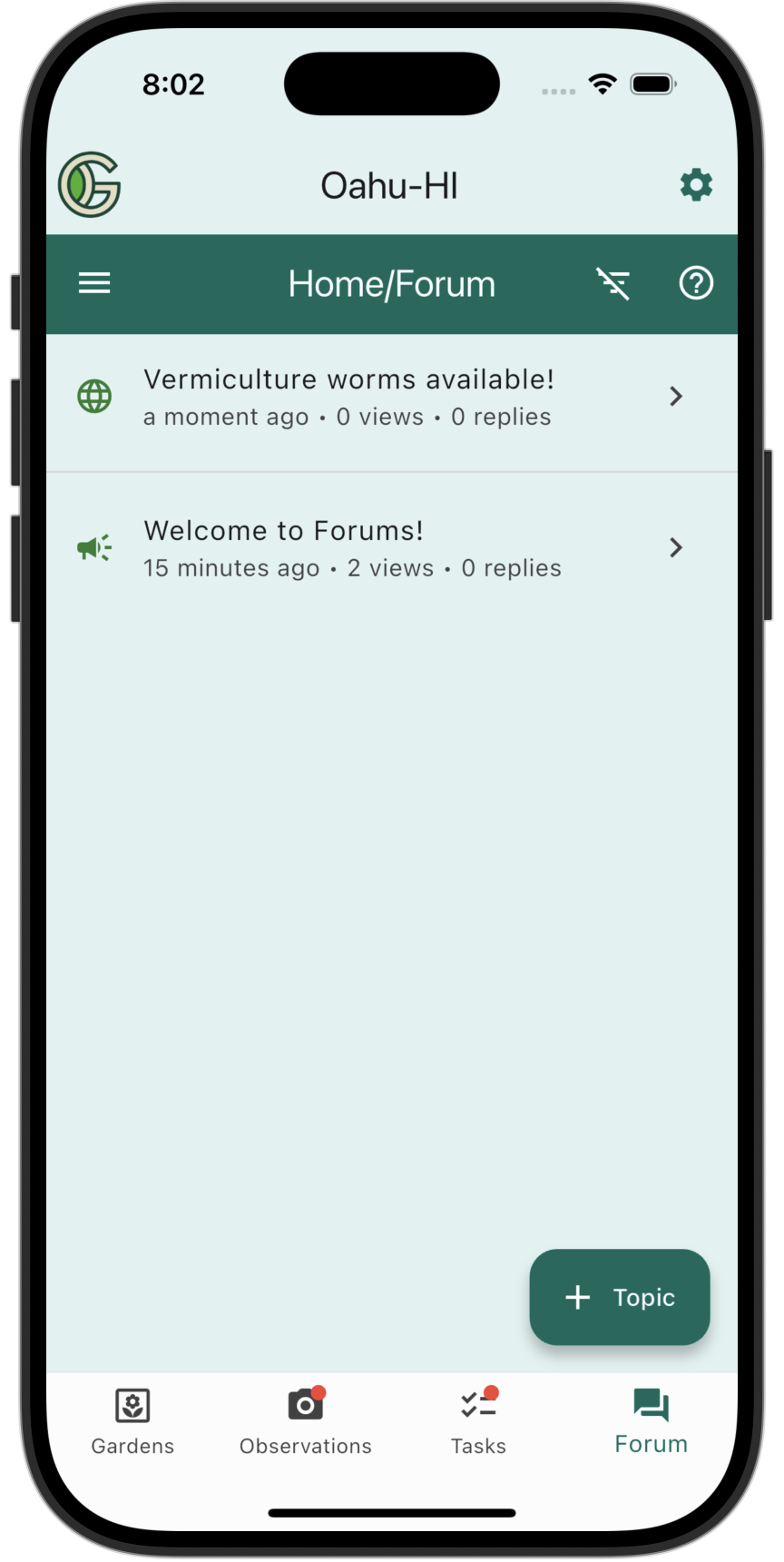
After clicking the submit button, a new forum topic will be created. It will appear in the list of topics like this:
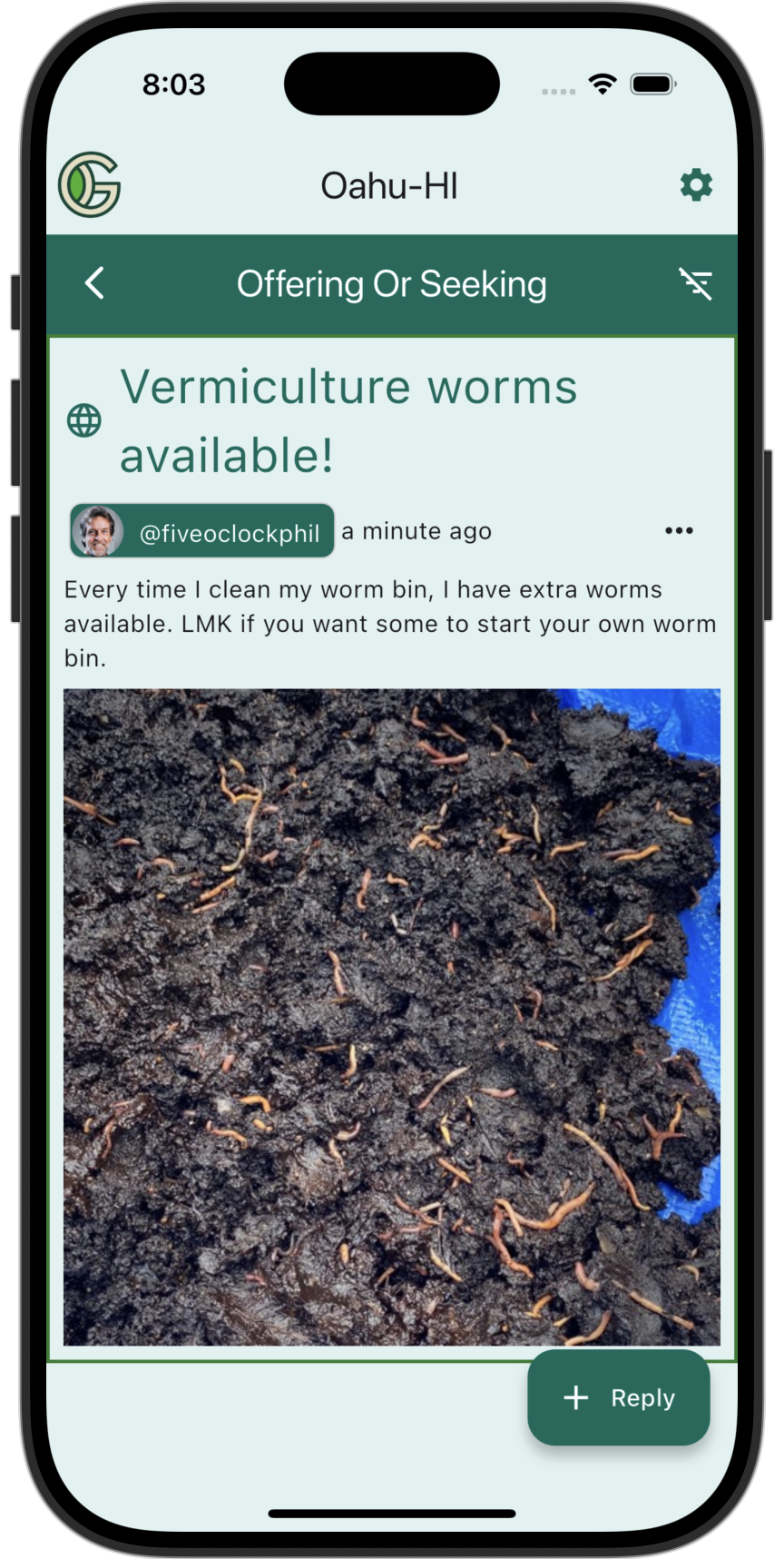
And look like this:
Create Topic Reply
To reply to a posted topic, tap the "+ Reply" button at the bottom left of a posting (as illustrated in the above screen shot). This will take you to a screen where you can enter your reply:
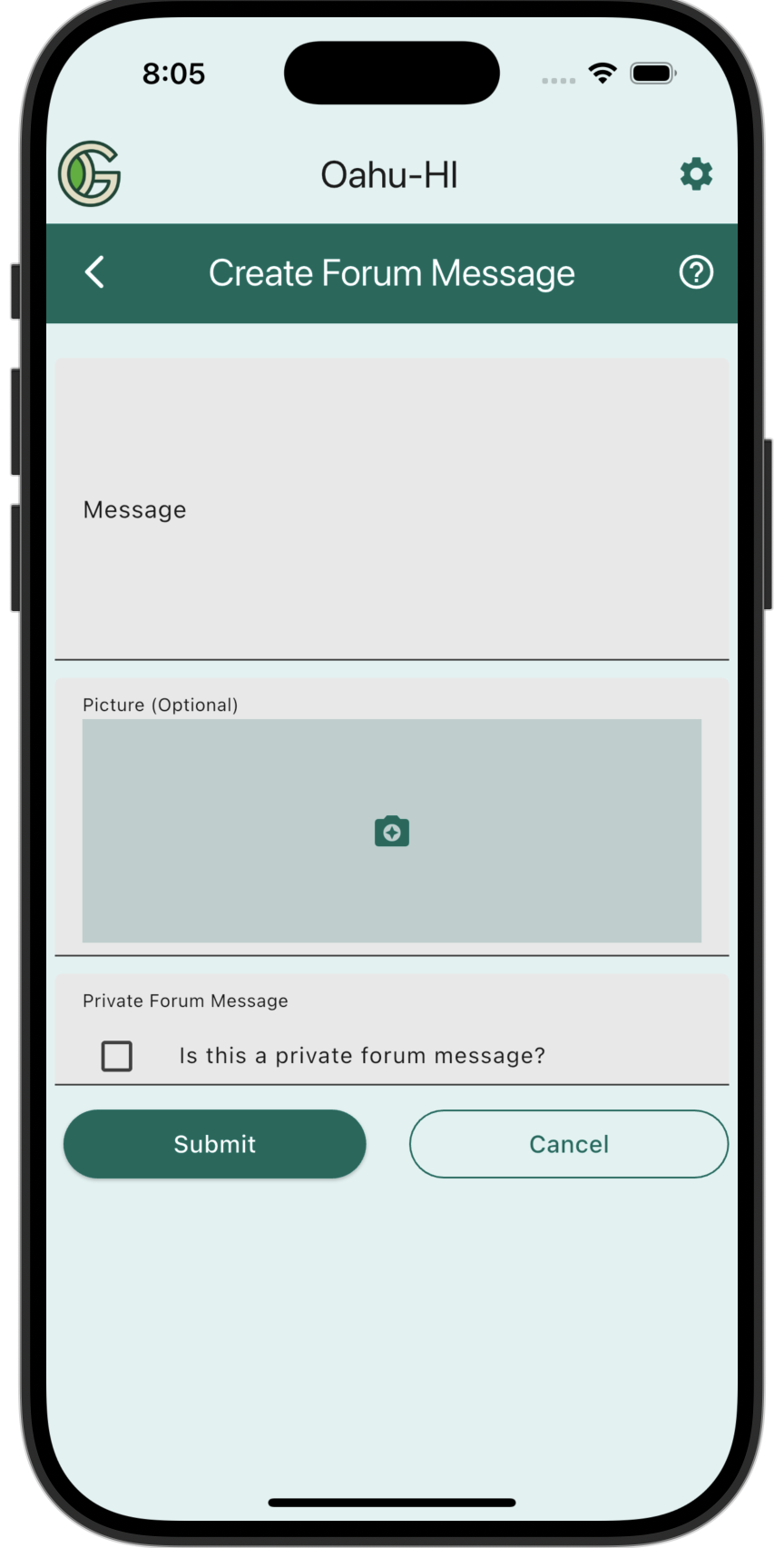
Type your reply in the message field. Include a photo if you wish.
When a chapter gardener is offering or seeking an item, you might want to reply with your contact details in order to arrange the transfer, and/or propose a specific time and place to meet up.
However, you generally don't want to share this information with the entire Chapter---just with the single person who posted the topic.
To communicate with the gardener privately, create a Private Message to the gardener instead of a Topic Reply. See Private Messages for more details.
Here is an example reply:
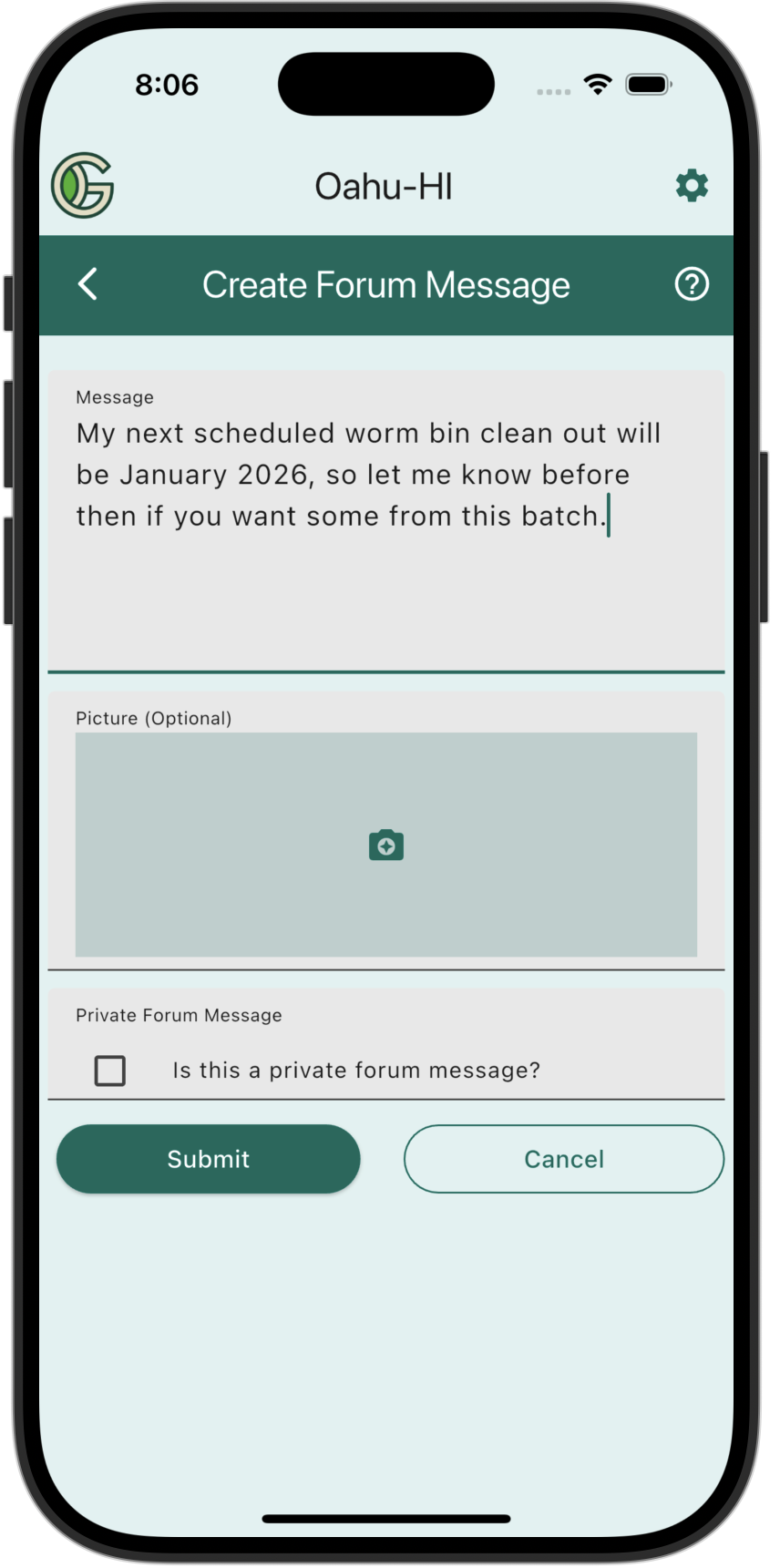
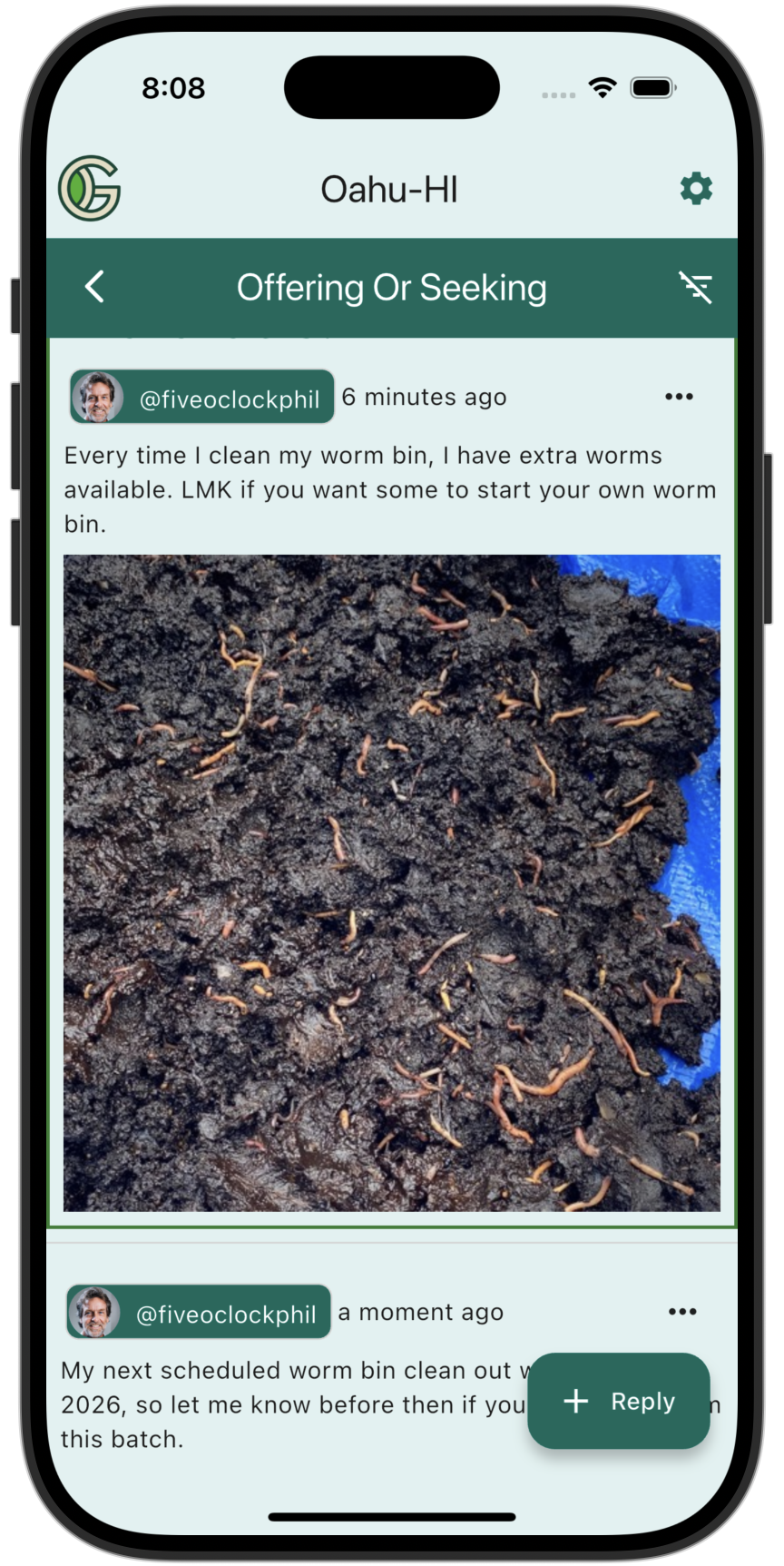
After tapping the submit button, it will appear in the screen associated with that topic:
Update or Delete Topic
After you have posted a Topic, you can update it or delete it by clicking on the three dots near the top of the posting. This will display a menu:
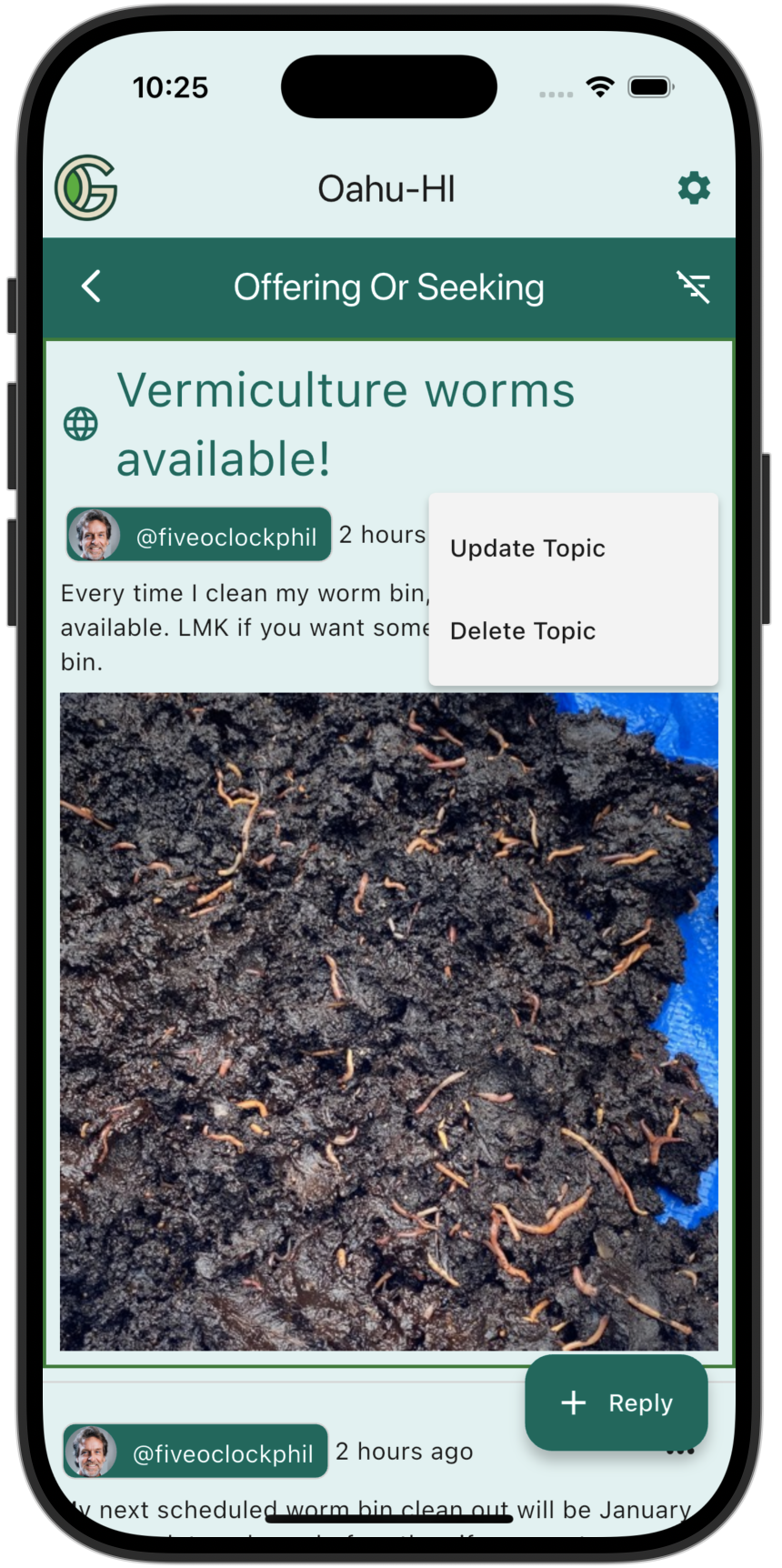
Tapping "Update Topic" allows you to update the topic (i.e. edit the title, message, or photo).
Tapping "Delete Topic" allows you to delete the topic. In the case of a Topic posting, this will delete the topic and all of its replies. In the case of a Topic reply, it will delete just the reply.